Feature Flags
Manage rollout of new features for specific users and organizations with Feature Flags.
Feature flags are a tool that allows teams to control the rollout of features in real time. They enable businesses to separate feature delivery from code deployment, creating a more agile and risk-managed approach to launching and managing product experiences.
WorkOS Feature Flags provides a developer-friendly solution that integrates seamlessly with your existing authentication flow. Create and manage flags through the dashboard then access them through a user’s access token. Feature flags can target organizations or individual users. This approach lets you safely roll out new functionality, enable beta programs for select customers, and manage premium feature access without deploying code changes.
- Targeted rollouts: Enable features for specific organizations before a general release
- Beta programs: Allow early access to new features for select customers
- Premium features: Restrict advanced functionality to organizations on higher-tier plans
To get the most out of these guides, you’ll need:
-
An existing organization in your WorkOS Dashboard
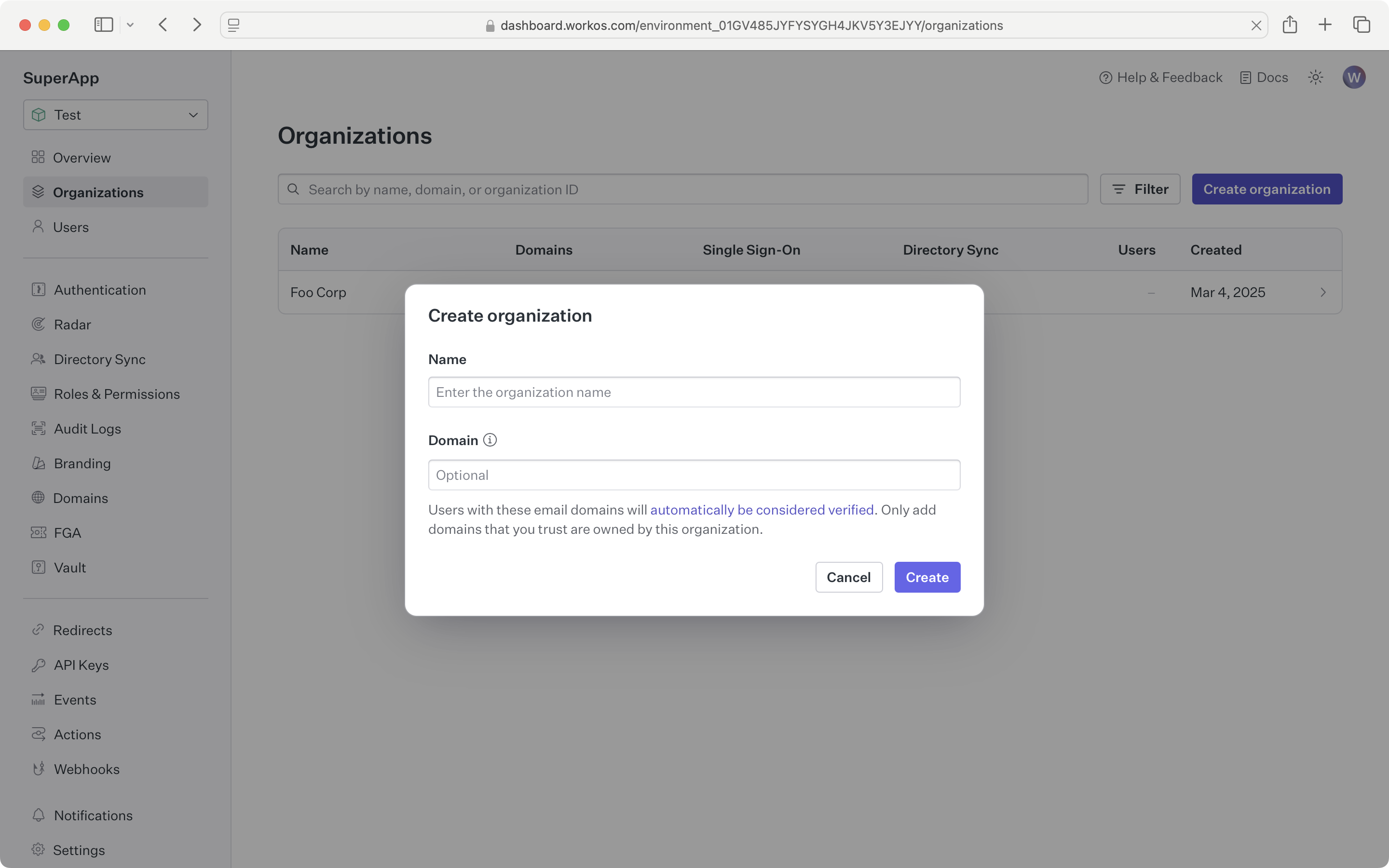
- Organization
- Describes an organization whose users sign in with a SSO Connection, or whose users are synced with a Directory Sync Connection.
- User
- Describes a user who can be targeted with feature flags.
- Sign in to your WorkOS dashboard account and navigate to the Feature Flags page.
- Click the
Create feature flagbutton and enter a name, slug, and description.
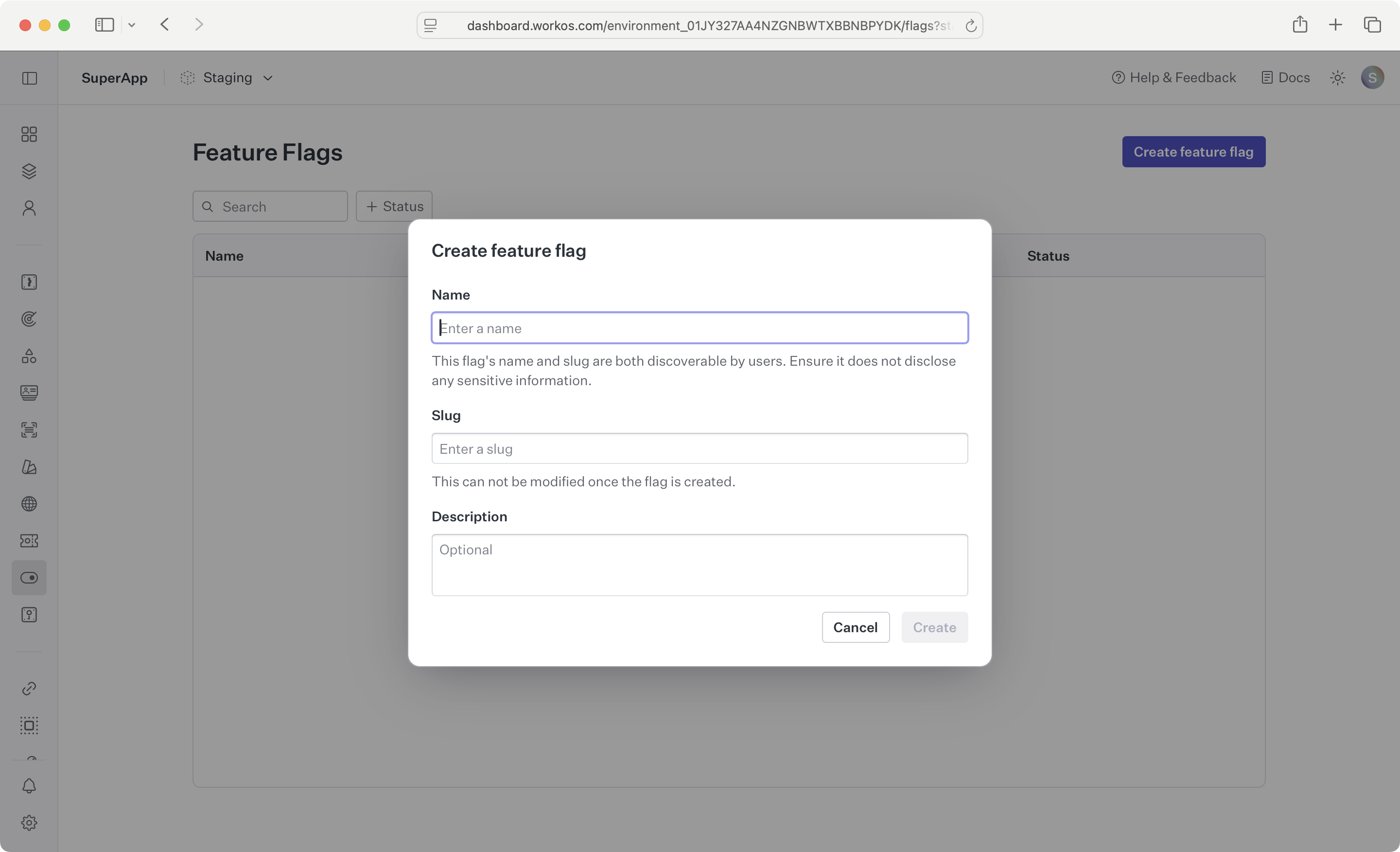
Feature flags are created across all environments, allowing you to test your feature flag in a sandbox environment before enabling it in production.
To edit which set of users and organizations should have the feature flag enabled, click Edit on the rule for the environment you want to edit. Next, select your desired rule setting between None, Some, and All. Selecting Some will allow you select specific users and organizations.
To edit a feature flag’s rules in other environments, click the Edit in X button which will update your active dashboard environment to the selected environment, allowing you to update rules in the chosen environment.
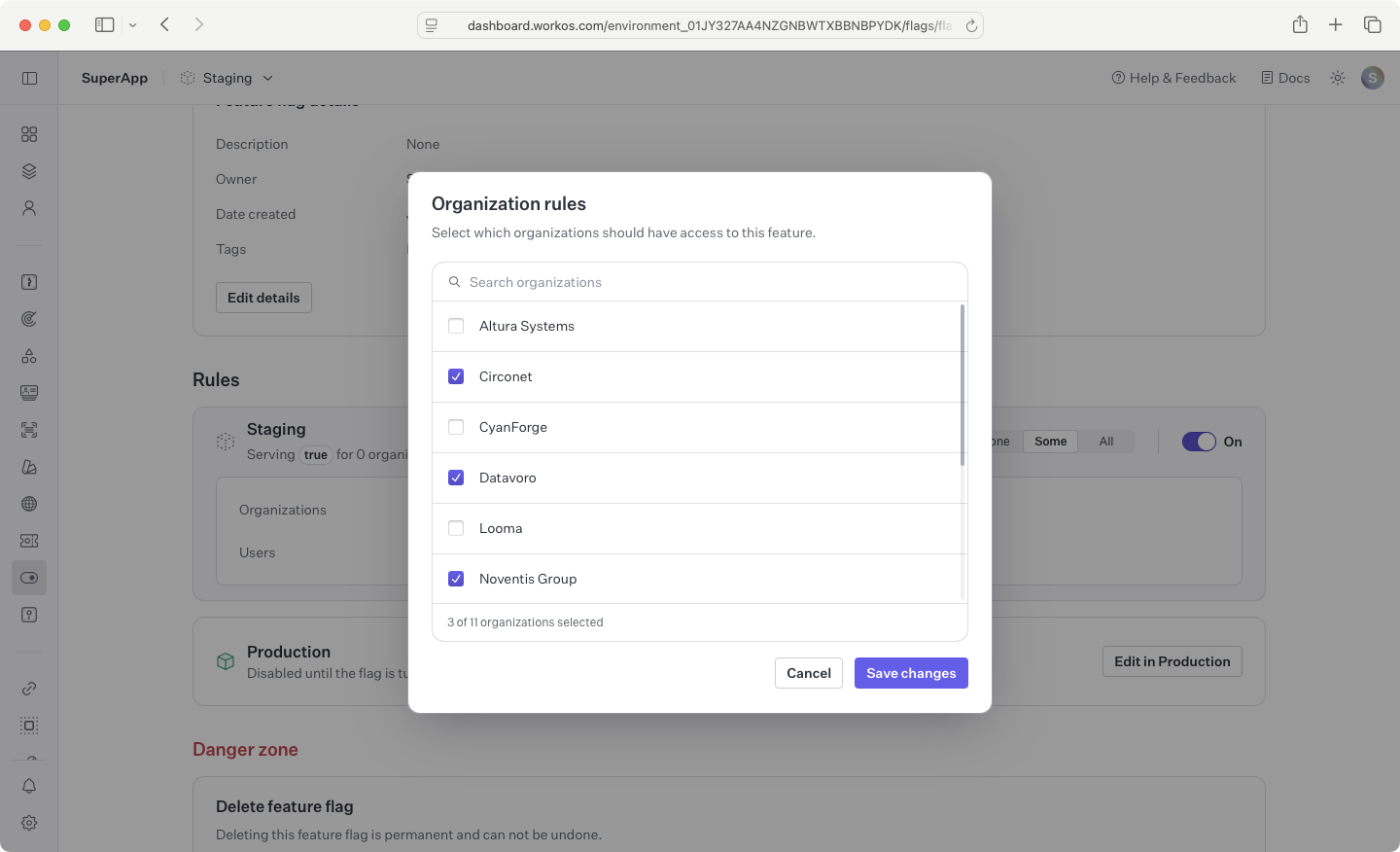
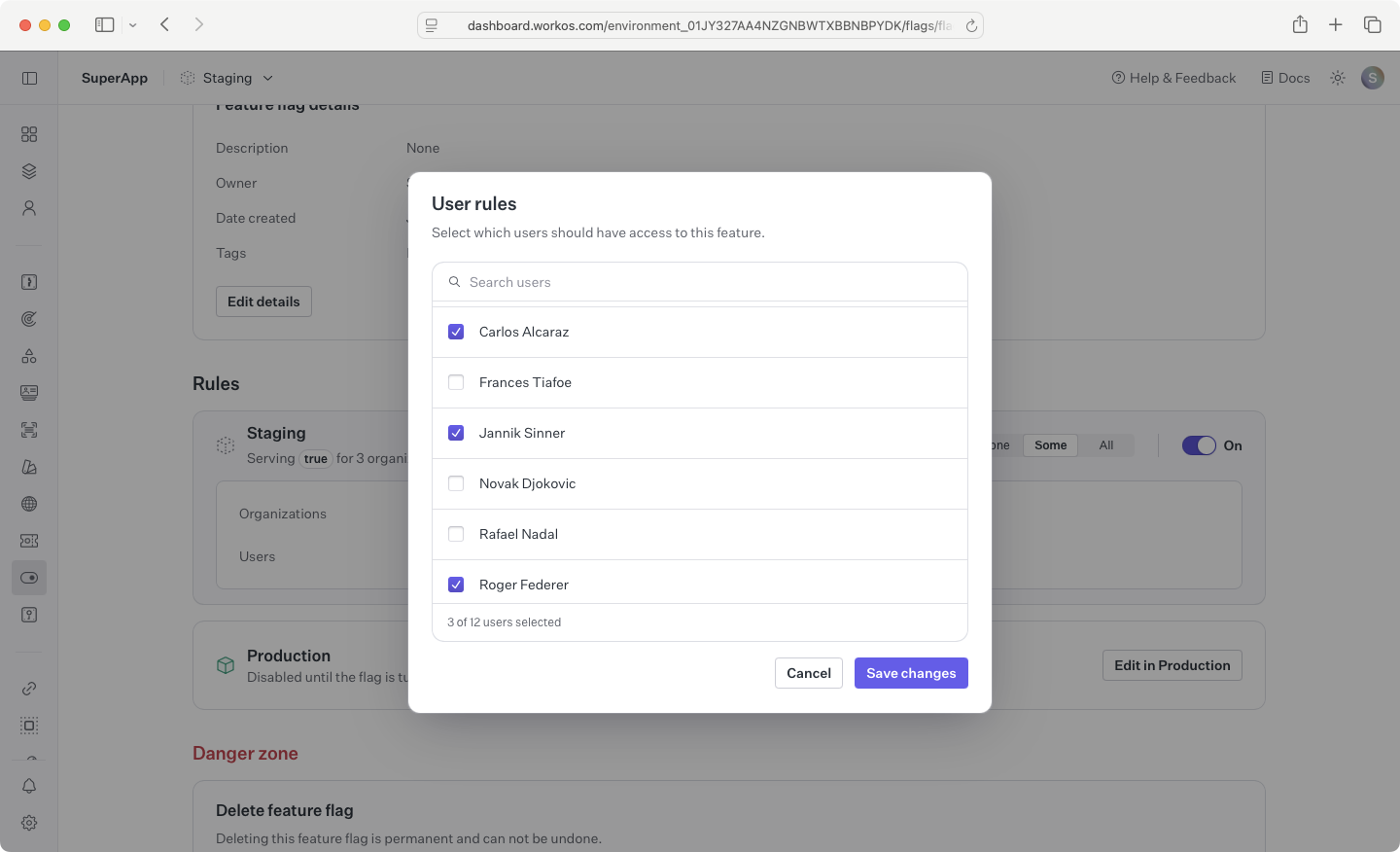
Once you’re ready to enable the feature for the configured set of organizations and users, toggle the flag on to start including it in a user’s access token when they authenticate for a configured organization or when the user is individually targeted.
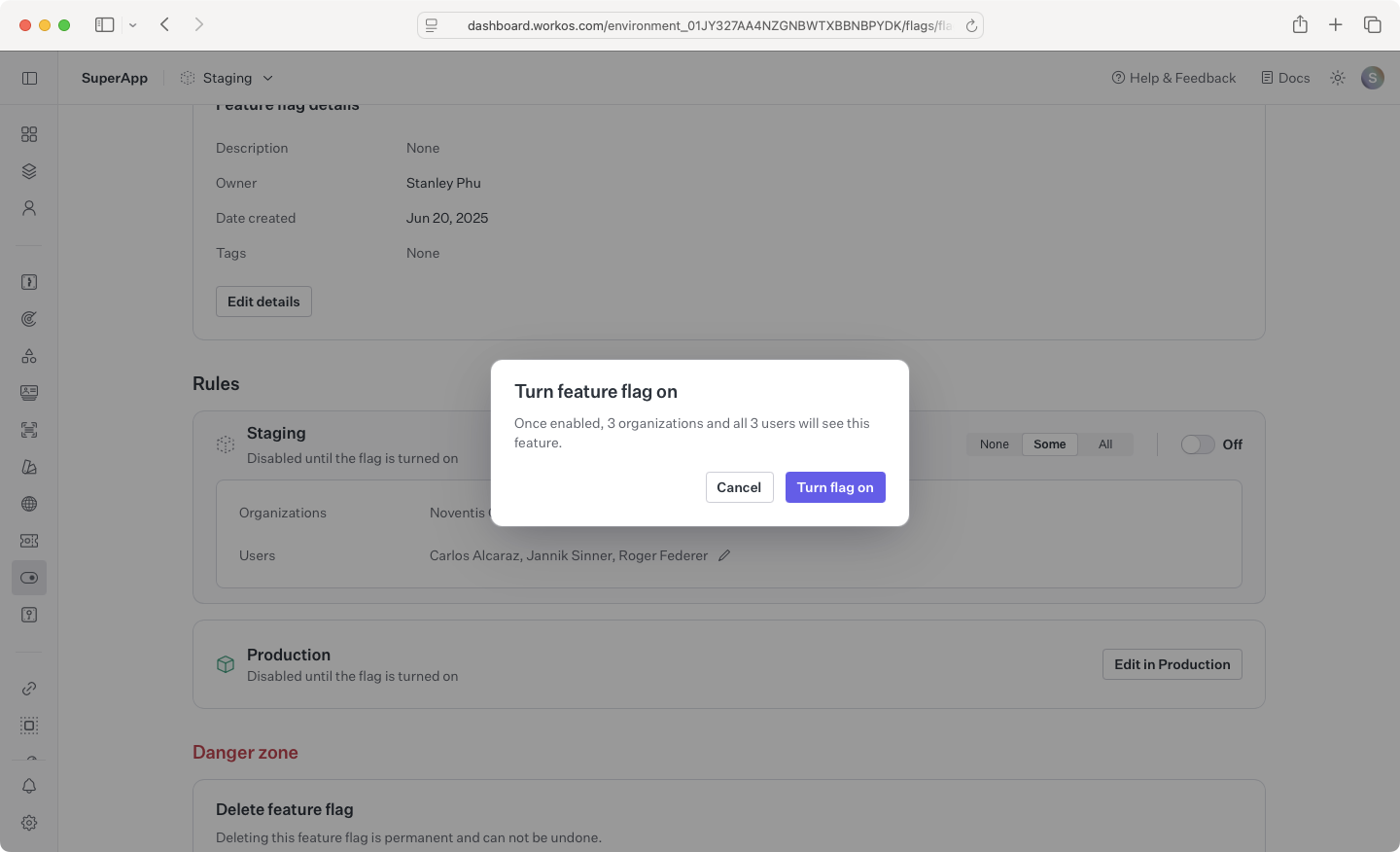
The access token includes the feature_flags claim, containing the user’s entitlements. You can use this information to gate access to features in your application.
Feature flags will show up in the access token the next time the user logs in or the session is refreshed. You can manually refresh the session after granting the organization access in the dashboard.
| app.get('/api/feature-flags', async (req, res) => { | |
| // load the original session | |
| const session = workos.userManagement.loadSealedSession({ | |
| cookiePassword: process.env.WORKOS_COOKIE_PASSWORD, | |
| sessionData: req.cookies['wos-session'], | |
| }); | |
| const { sealedSession, featureFlags } = await session.refresh(); | |
| // set the updated refresh session data in a cookie | |
| res.cookie('wos-session', sealedSession, { | |
| httpOnly: true, | |
| sameSite: 'lax', | |
| secure: true, | |
| }); | |
| // return the feature flags to the client | |
| res.json({ | |
| featureFlags, | |
| }); | |
| }); |
| // Fetch feature flags from your server endpoint | |
| const response = await fetch('/api/feature-flags'); | |
| const { featureFlags } = await response.json(); | |
| if (featureFlags.includes('new-feature')) { | |
| // Show new feature | |
| } |